Click the link “Download via Updater (from Github)” on the app homepage!
After download has finished, open the Windows Filemanager and click on “updater.exe” !
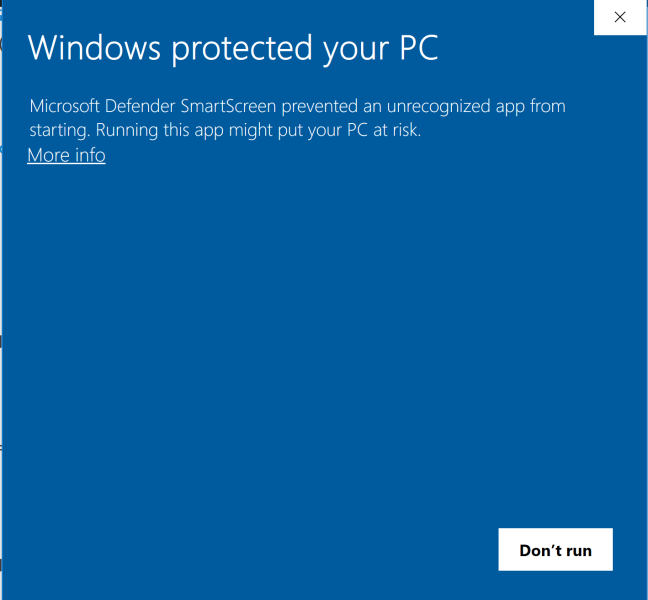
If this message appears,
Click on “More info“!
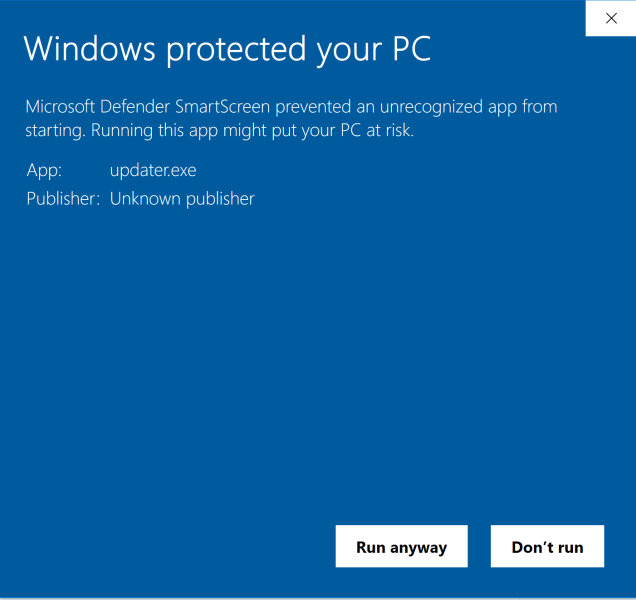
Click on “Run anyway”!
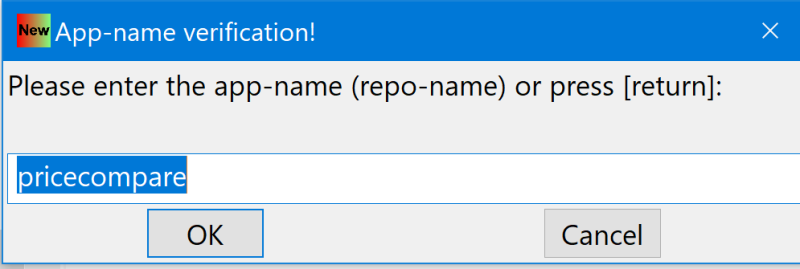
App-name verification is shown!
Example:
App/repository-name is “pricecompare”
If the correct app/repository-name is shown, click “OK”!
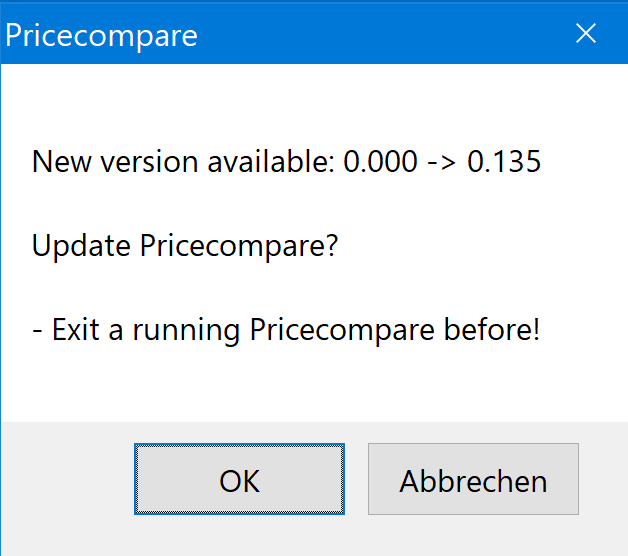
Version-info is shown,
Click “ok”!
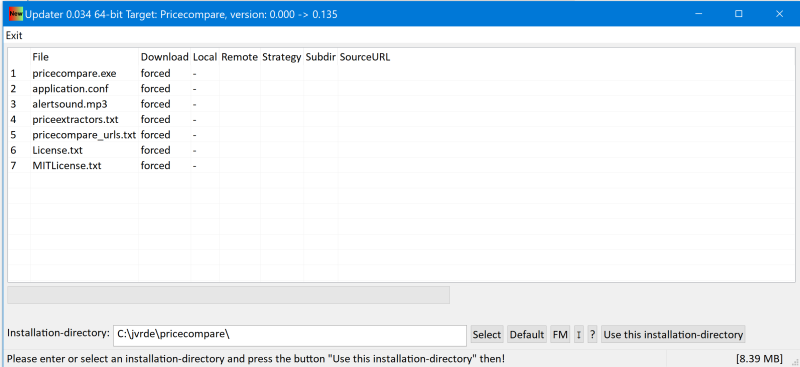
The default installation-directory is shown.
It can be changed, if required.
Do NOT use a Windows Program Files
directory, i.e.:
– NOT C:\Program Files
– NOT C:\Program Files (x86)
Click on the button “Use this installation-directory” (At the bottom, right)!
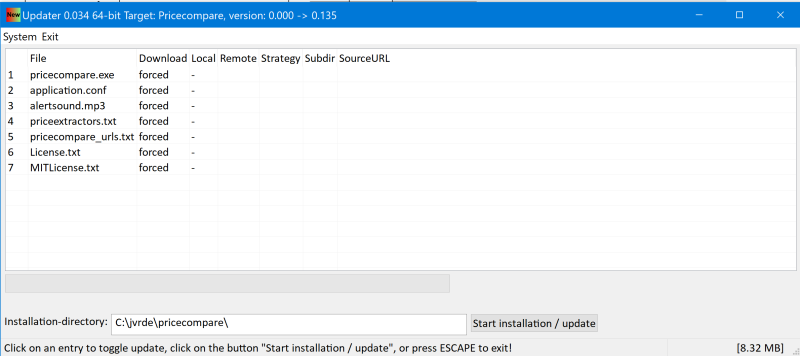
Click “Start installation / update”
(The Updater is in installation / update mode)!
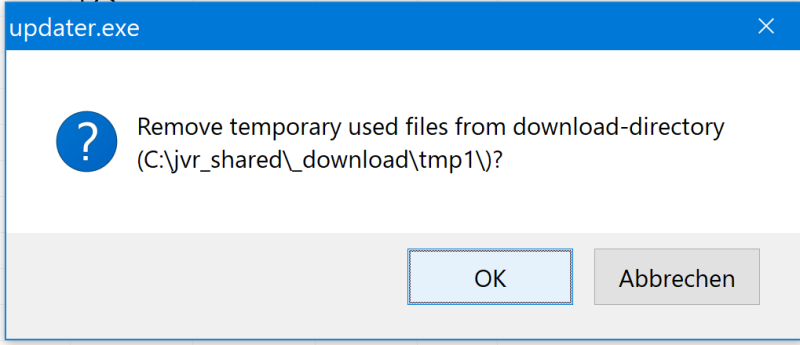
Click “ok”
to clean your download directory.
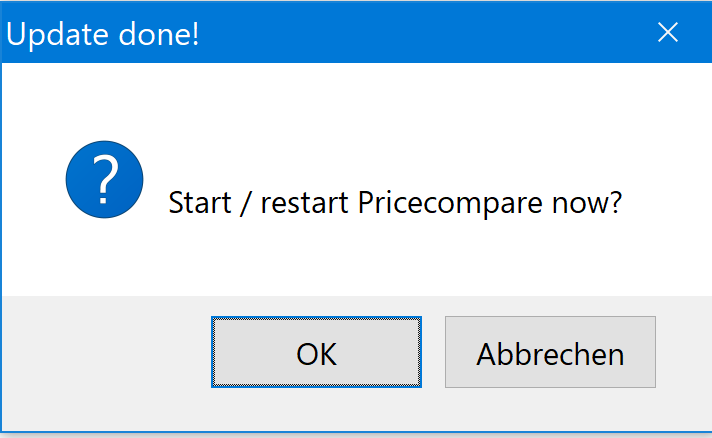
Click “ok” to start the downloaded app.
All files are kept in the installation-directory.
To start the app again later, open filemanager, select the installation directory and click on the app-name,
or pin it to the taskbar or make a desktop entry.
Thats all!
To uninstall the app:
- kill the app, if it runs in the background (apps using hotkeys allways run in the background)
- remove the installation-directory then!
If “updater.exe” is started again but from inside the installation-directory,
it starts in installation / update mode.